Self-Service Collections Setup
Self-service collections lets you work your own delinquent accounts in ConcordLink. On a schedule you set, ConcordLink reads your collectible accounts, sorts them into queues, and hands each queue to a team. Collectors work their list and record what happened. The follow-up date they set keeps that account off the next list.
Set up four pieces in this order. A fifth shows you the results:
- Universe: which accounts are collectible, and how late they must be to come into scope.
- Teams: the collectors who make the calls.
- Strategies: how often call lists are built, and how the universe is sliced into queues.
- Assignments: which strategy each product follows.
- Dashboard: what each run produced.
You can build teams and strategies in either order, but both need to exist before you make assignments.
Before you start
- Collections appears in the client-level navigation bar only when your client is set up for it. If you don't see it, ask your administrator.
- Anyone who will make collection calls must be set up as a collector before you can add them to a team.
- What you see under Collections depends on your user's access. If a page is missing from your menu, ask your administrator to check your access.
Finding collections
Collections is in the client-level navigation bar. Open the Collections menu to reach five pages: Dashboard, Strategies, Assignments, Teams, and Universe.
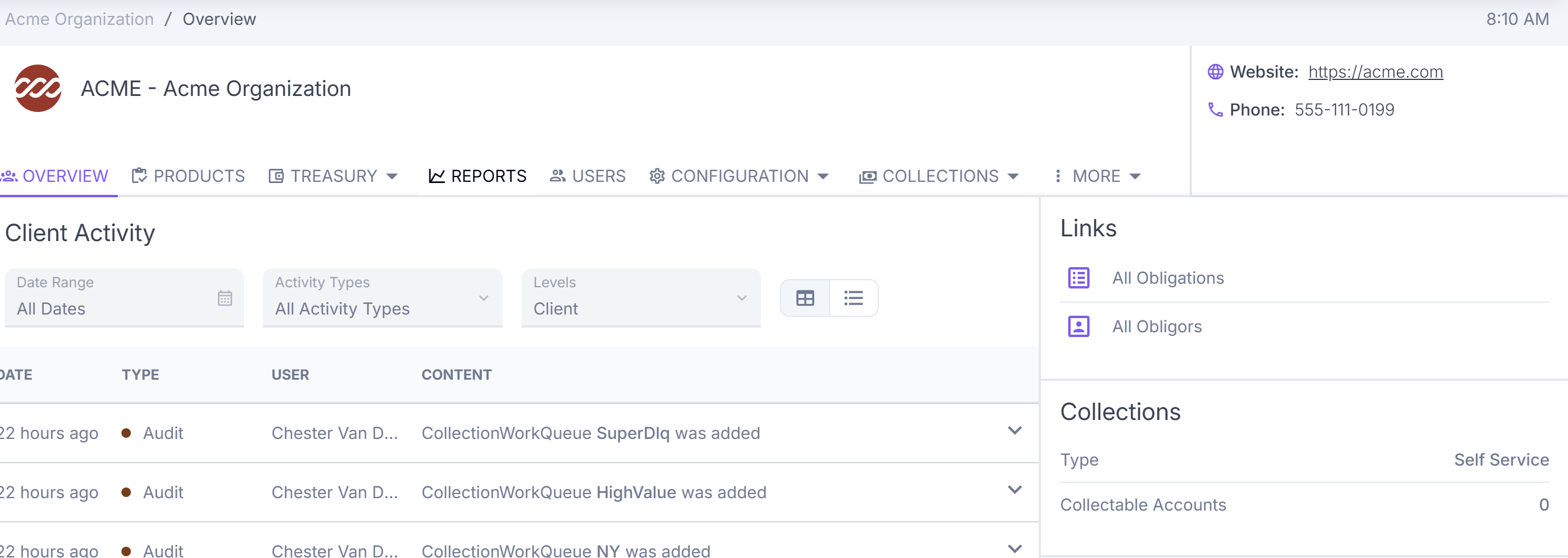
Collections types
Every client is set to one collections type on the Universe page.
| Type | What it means |
|---|---|
| Self Service | You work your own accounts. You get every collections tool: universe, teams, strategies, assignments, and dashboard. |
| Servicer | Concord works the accounts for you. You see only the configuration page. |
| Do Not Collect | No one collects on the client's accounts, and collections features are turned off. |
Setting the universe
The universe is the pool of accounts your collections can touch. An account outside it never reaches a queue. Start here when you set up a new client.
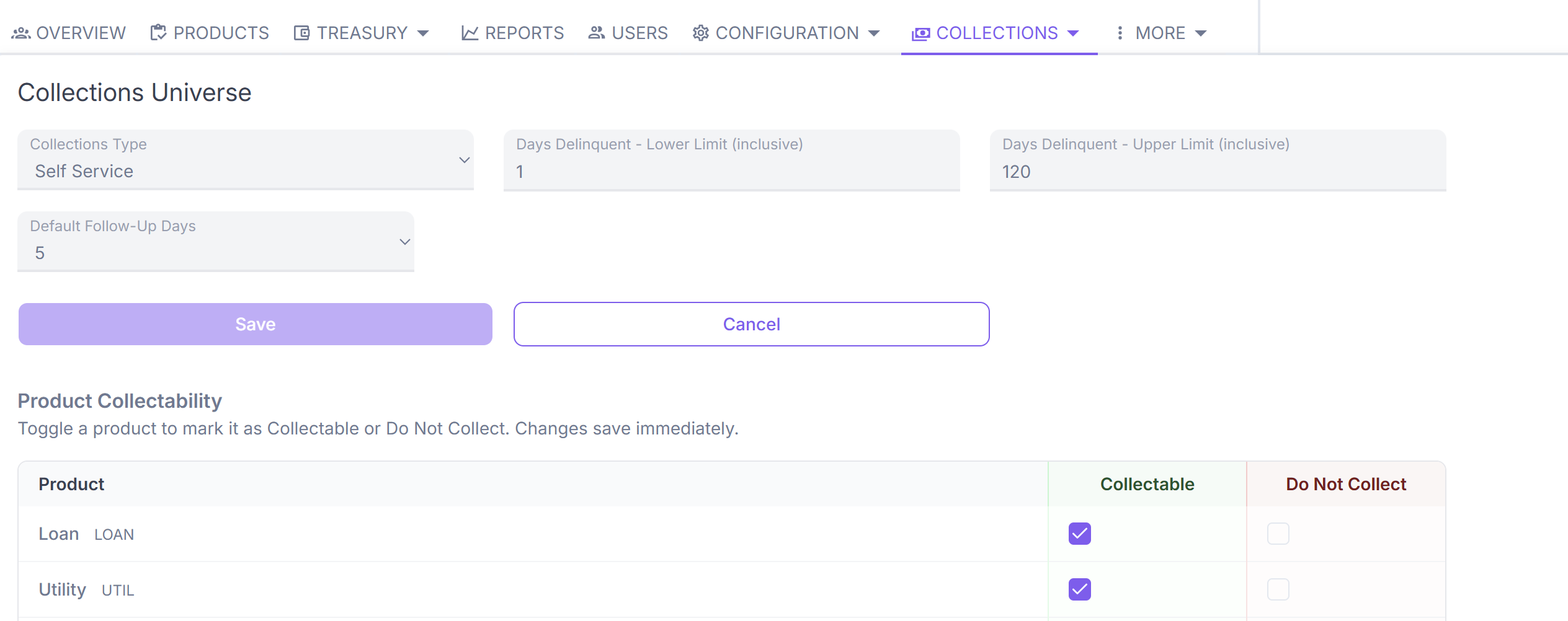
| Field | What it does |
|---|---|
| Collections Type | Choose Self Service if you work your own accounts. |
| Days Delinquent, Lower Limit (inclusive) | The first day an account comes into the universe. The example uses one. Some clients start later, at 15 days for instance. |
| Days Delinquent, Upper Limit (inclusive) | The last day an account stays in the universe. The example uses 120. Some clients set no upper cap. |
| Default Follow-Up Days | Every collections contact needs a follow-up date. Once a collector logs a contact, the account drops out of the collections workflow for this many days. The example uses five. |
| Product Collectability | Toggle each product between Collectable and Do Not Collect. |
- Select Collections, then Universe.
- Choose the Collections Type, enter the delinquency limits, and set the default follow-up days.
- Select Save.
- Under Product Collectability, mark each product Collectable or Do Not Collect.
Building teams
Teams are your collectors. Strategies decide which accounts each team gets.
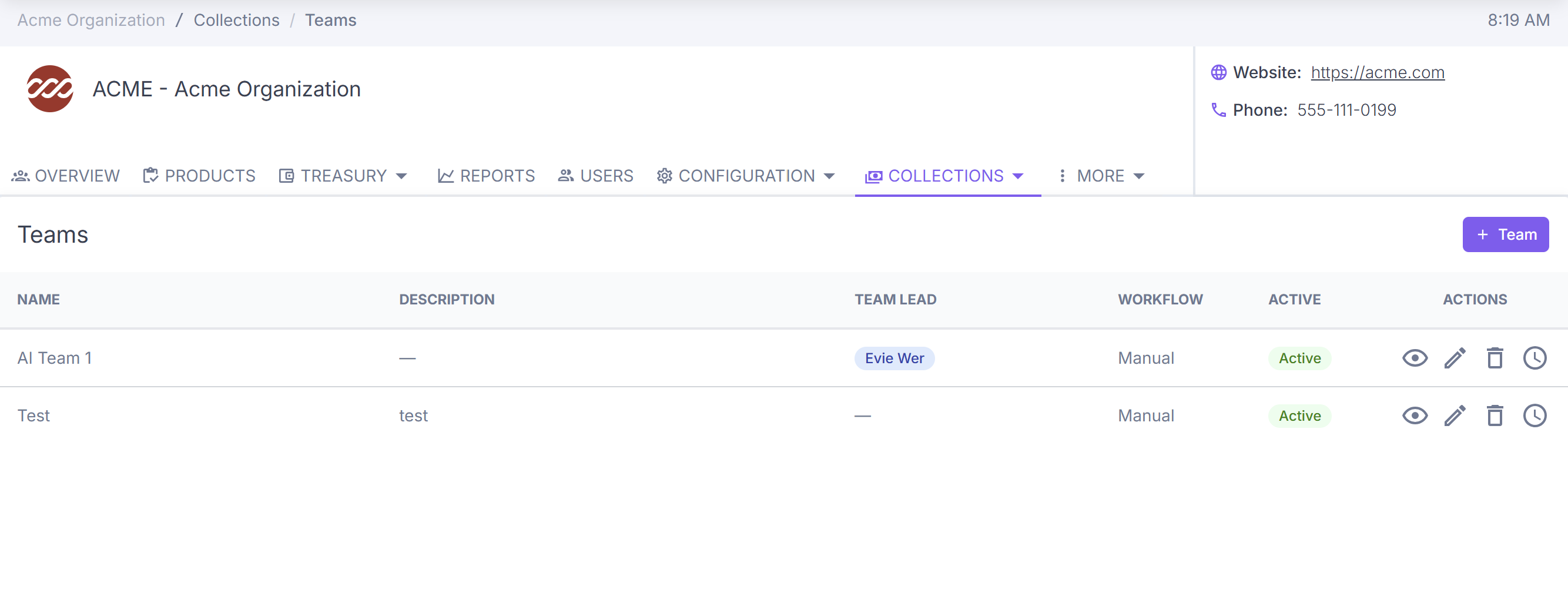
Each team has a name, an optional description, a team lead, a workflow, and an active status. The workflow decides how collectors get their list.
| Workflow | How it works |
|---|---|
| Manual | Collectors work in ConcordLink and make calls on their own phone system. You manage the team's members in ConcordLink. |
| Dialer | Collectors work in a dialer that ConcordLink is connected to. The dialer manages who is on the team, so ConcordLink doesn't track members, and it sends the call list to the dialer automatically. |
Most client teams are Manual. ConcordLink doesn't connect to a client's own dialer, so a Dialer team only makes sense where that connection has been built.
- Select Collections, then Teams, and select + Team.
- Enter a name, add a description if you want one, and choose the workflow.
- For a Manual team, open the team and add its members. Each member must already be set up as a collector.
- Choose a team lead. A team has one lead, so naming a new lead replaces the old one.
Building strategies and queues
A strategy does two jobs. It sets how often ConcordLink builds call lists, and it slices the universe into queues so the right team talks to the right accounts.
Run schedule
Choose how often ConcordLink reads the collectible accounts and bundles them into call lists: once a day, twice a day, every six hours, or another cadence. Many strategies run daily in the early morning, so the lists are ready when collectors start work.
Queues
Queues are segments of collectible accounts. You can build one from almost any field on the account. There are two kinds.
| Queue type | What it does |
|---|---|
| Parked queue | Accounts ConcordLink won't call. Set the behavior to Do not collect. |
| Work queue | Accounts that get called. Work queues run in sequential order. |
ConcordLink checks queues from top to bottom. An account lands in the first queue it matches and nowhere else, so every account sits in exactly one segment. Put a catch-all work queue at the bottom for everything left over. The example below shows the order a typical strategy might use.
| Queue | Rule |
|---|---|
| No Money (parked) | Payoff amount is less than or equal to zero. The account is delinquent but owes nothing, so there is no reason to call. |
| DontCollect (parked) | The account carries a do-not-collect behavior. |
| NY (work) | Primary state is New York. Collection rules differ by state, so a team that knows New York's rules can take this queue. |
| HighValue (work) | Principal balance is at or above a threshold you set. |
| SuperDlq (work) | Days delinquent is greater than a number you set, such as 120. |
| Catch-all (work) | Everything still unplaced. |
Slice the universe by how you want to talk to people.
Giving each work queue a team
- Select Collections, then Strategies, and open the strategy.
- For each work queue, choose the team that will work it. Quick assign fills several queues at once.
- Leave parked queues without a team, because nobody calls them.
You can change team assignments whenever you like.
Assigning products to strategies
Assignments connect each collectible product to the strategy it will follow.
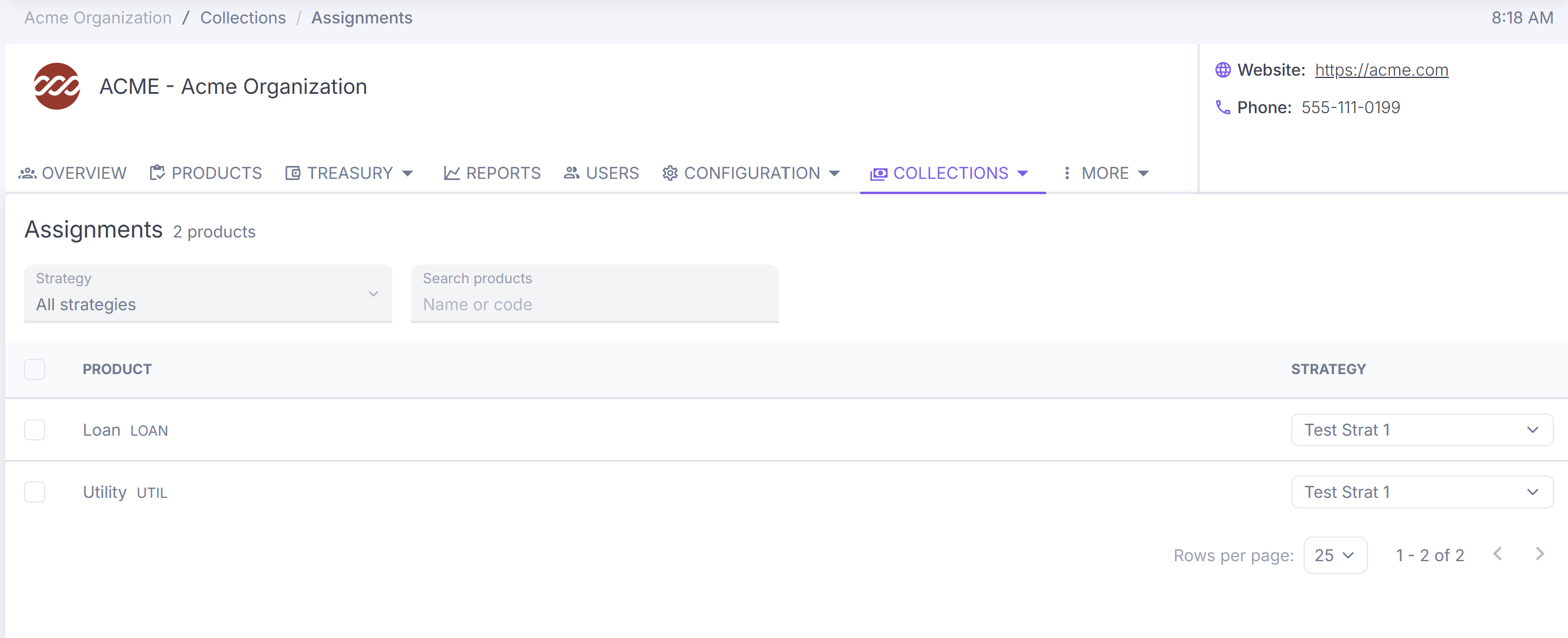
- Select Collections, then Assignments.
- Find the product. Use the Strategy filter or the search box if the list is long.
- Choose its strategy from the dropdown in that row.
A client with a loan product and a utility product can run a different strategy for each.
Monitoring runs on the dashboard
Each time a strategy runs, ConcordLink breaks the universe into queues and creates call tasks for the assigned teams. The dashboard shows what happened.
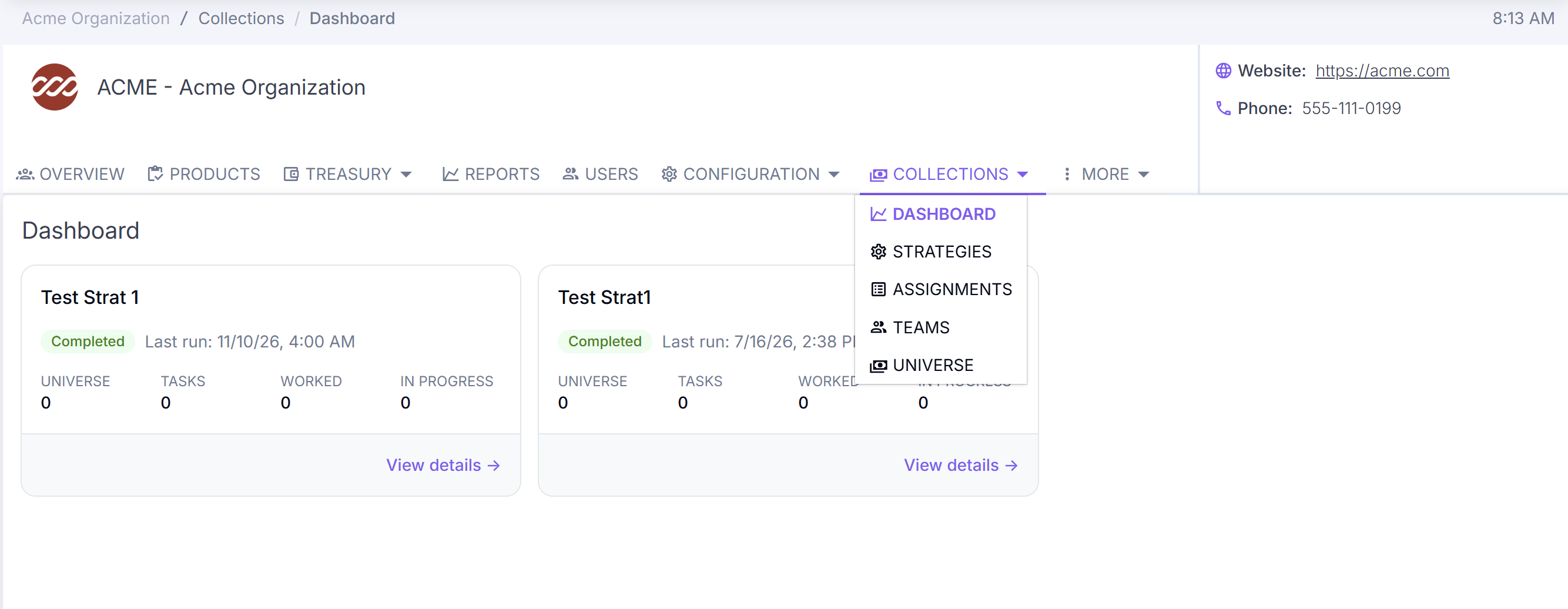
Each strategy card shows its status, the time of its last run, and four counts: Universe, Tasks, Worked, and In Progress. Select View details to see how the run broke down.
In an example run, ConcordLink looked at 21 obligations, created 11 call tasks, and skipped 10. It skipped them because their follow-up days hadn't passed yet, so contacting them again would have been too soon. The run detail shows how accounts landed in each queue, and you can export it to analyze elsewhere.
Working the list
What happens next depends on the team's workflow.
Dialer teams
ConcordLink sends the call list to the connected dialer automatically. The collector's work moves to the dialer from there, and ConcordLink's part is done.
Manual teams
The collector sees a notice on the home page saying how many accounts were just assigned to their team, with a Start button. Most clients work this way, because ConcordLink doesn't know the client's phone system. Collectors make calls on their own phones and keep ConcordLink open as they work through the list.
- Select Start on the home page notice.
- ConcordLink opens the first account. An overlay at the top shows progress through the list.
- Record a call resolution, add notes, give the delinquency reason, and set the follow-up days.
- Move to the next account.
The follow-up days feed back into the strategy, so the next run skips that account until the days pass.
Tips
- A skipped account is expected. It means the account's follow-up days haven't passed yet.
- A dashboard at zero means no accounts in the universe are delinquent. That is the case in the demo client.
- If Strategies is missing from your Collections menu, your user's access may be limited. Ask your administrator to check it, or select Contact Concord.
Related: Collection Tasks for status changes, escalations, hardship requests, and past-due workflows.
Back to: Collection Tasks